The latest documentation here (at the Aegir project wiki) should probably be referenced instead.
Introduction
SSL support was significantly improved in Aegir 0.4 alpha9 and subsequent releases have further refined the SSL functionality. Here are the current steps to configure SSL support in Aegir and apply it to your web sites.
Prepare Your Server
-
Make sure port 443 is open for SSL traffic.
-
From the command line, install SSL software for your web server (e.g. on Debian/Ubuntu you can use
sudo apt-get install openssl). -
Enable SSL support (e.g.
sudo a2enmod ssl). You will need to restart Apache at this point.
Enable SSL Support in Aegir
-
You have to enable SSL support in Aegir as it is off by default. Assuming the URL of your Aegir front end is aegir.example.com, browse to aegir.example.com/admin/hosting/features

-
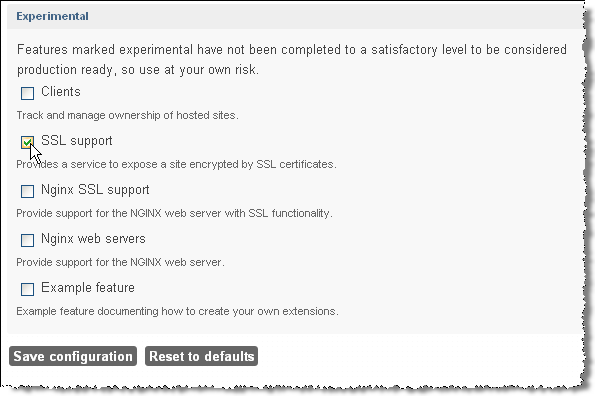
Click on Experimental to reveal experimental features
-
Check SSL support
-
Click Save configuration
Configure Your Aegir Server
-
Click on the Servers tab
-
Click on the server that you wish to enable SSL support
-
Click Edit to change the server configuration
-
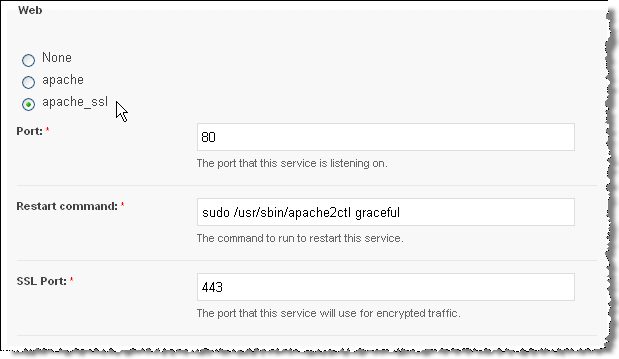
Click apache_ssl (this will reveal an additional field: SSL port, which should be already populated with 443). Note: you may also have to add an IP address to the IP addresses field.
-
Click Save - this will start various tasks beginning with a verify task on the server followed by verify tasks on all platforms that are associated with that server
-
If all goes well you will see the following changes in your Aegir file system structure:
a) under /var/aegir/config you will see a new directory ssl.d
b) under /var/aegir/config/server_name you will see a similar new directory ssl.d
Configure Your Aegir Site
-
You must enable SSL on your sites that are on those platforms associated with the server. Browse to aegir.example.com/hosting/c/site-1.com
-
Click Edit to change the site configuration
-
Choose the type of Encryption required and the Encryption key (see the explanatory notes below each option)
 . Alternatively, you may want to specify a directory under /var/aegir/config/ssl.d where your own certificate and key is stored.
 -
Click Save. Aegir will then generate a certificate and private key for your web site and insert these into a new VirtualHost directive in your vhost file. (This file is typically at /config/server_master/apache/vhost.d/site-1.com).
-
If all goes well the VirtualHost directive will now have these important elements:
<VirtualHost xx.xx.xx.xx:443>  <-- where xx.xx.xx.xx is an IP address dedicated for SSL access to your site and 443 is the port number
    ....

    # Enable SSL handling.
    SSLEngine on

    SSLCertificateFile /var/aegir/config/server_master/ssl.d/site-1.com/openssl.crt
    SSLCertificateKeyFile /var/aegir/config/server_master/ssl.d/site-1.com/openssl.key
Now, when you navigate to https://site-1.com you should see that your site is SSL enabled.
Using your own certificate
If (for example) you had a commercial wildcard certificate for *.myname.com, and wanted to get all your aegirsite.myname.com sites to use it ...
- Start as above, by enabling optional SSL on aegirsite.myname.com
- Choose 'generate new certificate, but define the certificate name as "myname.com" or "wildcard.myname.com". The name is just a label, the only thing to not do is name it after the single site, becasue that would get confusing later.
-
When this form is saved, the system will have created a self-signed cert in
/var/aegir/config/ssl.d/myname.com/openssl.crtand copied that into/var/aegir/config/server_master/ssl.d/myname.com/as well. Ignore the second one. -
You should now copy your commercial keys into
config/ssl.d/myname.com/and rename them asopenssl.crt, openssl.key, openssl_chain.crtto over-write the automatic ones. Take care to keep file ownership and permissions identical to the originals though. -
Now re-verify your site through the hostmaster UI. At this point, your custom keys are quietly re-copied into the
/var/aegir/config/server_master/ssl.d/myname.comfolder, and the vhost is configured to use those copies.
Your site should now be available over https with a green lock indicator.
OTHER sites you add to the same server are now able to choose to re-use this certificate also - as long as the wildcard domain rules of the cert allow that.
Notes:
BEWARE - the path listed in the vhost /var/aegir/config/server_master/ssl.d/site-1.com/openssl.crt is overwritten by the system all the time, it is a COPY of the files that are managed in an identical directory at /var/aegir/config/ssl.d/site-1.com/openssl.crt
( note, no server_master)
Do NOT make manual changes in config/server_master/ssl.d/ - they will be lost frequently.
Make your changes in config/ssl.d/ and then run a 'verify' if you want your changes to stick!
Whenever you reverify your site, the vhost file, and the copies of the certificates are automatically regenerated by Aegir and any non-Aegir generated certificate information will be replaced in the vhost file. Changes made manually in the vhost file or edits made under the /var/aegir/config/server_master/ssl.d/ will be lost. If you want to make changes that stick and won't be stomped by Aegir later, consider putting your own stuff in /var/aegir/config/server_master/apache/pre.d /var/aegir/config/server_master/apache/post.d
etc.