Below is a draft of best practices for using Google calendar to manage community projects, something one of my favorite non-calendar-oriented contributors asked me to write up. I'm very interested how my ideas of best practices match up with others.' I'm posting it as a wiki page so anyone can improve on it, but I'm also hoping major changes will spark discussion, explanation, enlightenment :)
Why Google calendar?
Google calendaring doesn’t take the place of announcements to the community made on groups.drupal.org, but it is the de facto standard for nuts-and-bolts scheduling, in part because most Drupal project participants already have Google e-mail accounts and personal Google calendars.
Unlike g.d.o, an organizer can invite specific people, track whether they’ve accepted or declined the invitation, including comments, schedule complex repeating events or multi-day events without any limitations on how often or far in advance they repeat, and when properly set up, use the Find times feature to speed up scheduling.
Some basic calendaring caveats
Just because people keep a Google calendar doesn’t mean they use them reliably or effectively. If you’re keeping the schedule for a project you can add a lot of value to the process by using the calendar as a backbone for organizing and fleshing it out with whatever reminders (tweets, IRC pings, etc.) each particular participant needs to get there on-time.
Give the project its own calendar
This allows you to:
- delegate or share calendar administration
- transfer ownership of the calendar
- avoid frustrating differences between free and paid Google calendar sharing
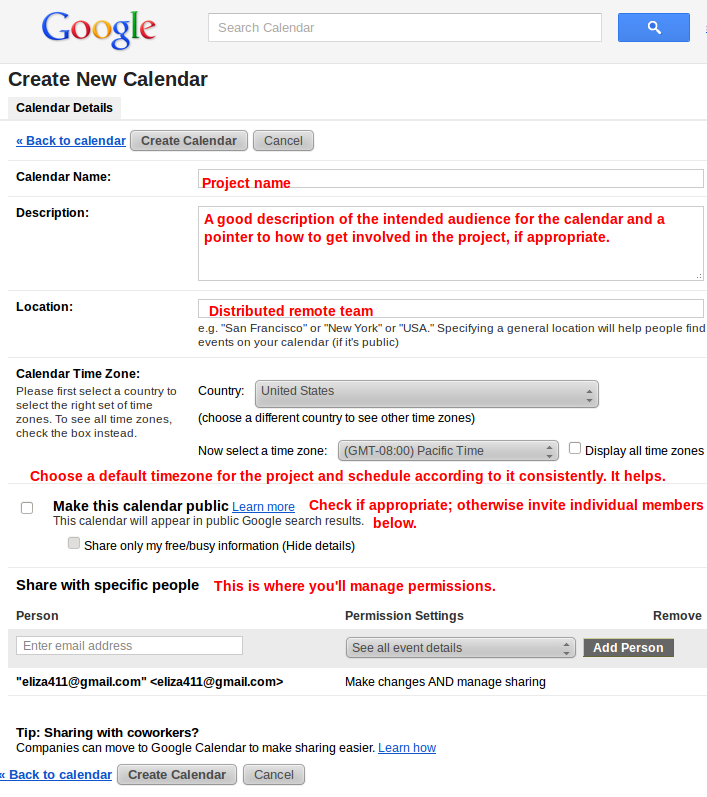
- set a default timezone that best meets the project needs. I find it best to declare a default timezone for the project and try to do all scheduling conversations and public posts based on that as a primary reference. When users add the event to their own calendar, they'll see it in their timezone, but the scheduling conversations seem more successful when there's a primary reference. It's confusing to switch timezones based on who posted a particular announcement on g.d.o.
Collect the right addresses
Ask users what e-mail address they use for accessing their Google calendars and invite them using those addresses.
Yes, you can invite anyone to an event using any e-mail address. They don’t even need a Google account. However, unless you invite someone using the e-mail address associated with their Google calendar, the event won’t appear on automatically for them. Consequently, they won’t have a reminder available in the way that works for them, the event won’t appear translated to their local time zone, and you won’t be able to use the “Find a time” feature.
Continue to recognize that some people just don't work well with calendaring and don't read e-mail regularly and will need a manual invite (phone call, IRC ping, etc.)
Schedule your events BEFORE inviting guests
Schedule your meetings and proof them for accuracy before you invite guests. Once the meeting is scheduled, you’ll be able to add your guests and you’ll be given the option to e-mail the invite or not.
Use repeating events when possible (and appropriate)
Users can opt in to a repeating event with just one acceptance or indicate their attendance on a case-by-case basis. If you add each event individually, it forces attendees to accept each event (which is sometimes desirable).
For sprint scheduling, for example, you might create a 20 minute event that repeats Monday, Wednesday, and Friday for two weeks, filling it in with the default text for the stand up meetings, then customize the time and description of first date for the sprint planning meeting and the last date for the demo, and then invite guests.
Creating a new calendar
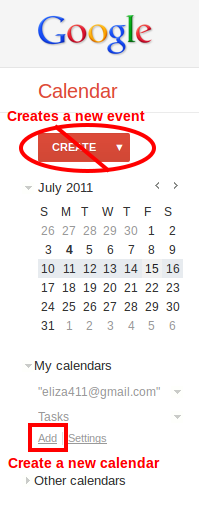
The new calendar link is located in the My calendars section:
The screen capture below shows where to set information and manage sharing.
Finding meeting times
Google's "Find a time" feature will let your scheduler find mutual open spaces to propose meeting times instead of the dreaded moments where everyone pulls up their calendar and spend ten minutes trying to make a schedule. You can’t assume that all your guests are free just because they have a space on their calendars. That depends on how well they enter their commitment. You can, however, come up with much better suggestions for mutual meeting times this way.
This feature is available both from within Gmail with its Insert invitation feature or from the calendar.
Sharing your calendar
The easiest way to share calendars is to make events visible as busy/free times with the public. You can change this on a per-event basis. People have plenty of reasons they prefer not to share so broadly, in which case they can share with the organizers specifically by adding the organizers' e-mail addresses.
Changing the owner of an event
If you accidentally send out an invite to an event on your personal calendar you may want to change the ownership of the event. You can do this by assigning the event to another user or by transferring it to your project calendar so that all people with the right to manage that calendar can interact with it.